
The Self-Assembling Timeline
Your day, assembled from every source into categorized blocks, with suggested projects you can accept or reject.
These images are illustrations of the concept, not screenshots of the actual product.
Overview
The timeline is the center of TimeCampus. Rather than asking people to start and stop timers, the concept assembles the day on its own from the activity it captures across calendars, chat, editors and other tools, and lays it out as a clear sequence of categorized blocks: deep work, meetings, communication and breaks.
Manual time tracking tends to produce patchy records, because people forget to press start or reconstruct the week from memory on Friday afternoon. The timeline is designed to remove that bookkeeping while keeping the person in control. Activity is categorized automatically, attribution to projects is proposed rather than imposed, and nothing is applied until the person accepts it.
The first illustration shows the desktop Timeline with headline metrics for tracked time, focus ratio, context switches and the longest focus block, plus a category ring. A Today view stacks color-coded blocks along a time axis, each naming the category, the activity and the tool it came from, such as a deep-work session in a code editor or a standup in a video call. The second illustration adds project attribution: a table of activities with a time range, a category badge, a project and a confidence score, a count of unattributed time, and a highlighted row where a suggested project can be accepted, rejected or swapped with Choose another. A Why this suggestion panel explains the reasoning by showing the matched text, a rule-based score and whether the model agreed, and notes that nothing is applied until you accept. Suggest projects and Add entry buttons sit beside a date picker. The third illustration brings the same timeline to a phone, with a Focus Summary card and a scrolling day of deep-work, meeting and break cards.
The timeline feeds most of the rest of the product. Its categories drive focus scoring and work-pattern signals, attributed time rolls up into projects, reports and billing, and the same blocks appear in the broader Life Timeline for people who choose to include personal time.
What this concept shows
- Headline metrics for tracked time, focus ratio, context switches and the longest focus block
- Color-coded blocks for deep work, meetings, communication and breaks, each labeled with its source tool
- An activity table with category badges, a project and a confidence score for each attribution
- Suggested project attribution with Accept, Reject and Choose another actions
- A Why this suggestion panel showing the matched text, the rule score and whether the model agreed
- An unattributed time counter and a Suggest projects action to fill the gaps
- A mobile timeline with a Focus Summary card and navigation for Timeline, Timer, Projects and Insights
How it works
- Open Timeline to see today's activity already arranged into categorized blocks, with no timer started.
- Check the summary metrics for tracked time, focus ratio, context switches and the longest focus block.
- Review the activity table and the unattributed time counter to spot work that has no project yet.
- Select Suggest projects, then accept, reject or choose another project for each suggested row.
- Read the Why this suggestion panel to see the evidence behind a proposal before accepting it.
- Add an entry for anything the capture sources missed, or move to another day with the date picker.
- Glance at the same timeline on a phone during the day through the mobile view.
Who it's for
- Knowledge workers who want an accurate record without manual timers
- Developers and designers whose work spans many tools
- Consultants and agencies attributing time to client projects
- Team leads who need reliable project time without micromanaging
Illustrations
3 illustrations of this concept. Select one to view it full size.
Today's Timeline of Categorized Blocks
This illustration shows the Timeline page inside a desktop app frame, with a sidebar listing Dashboard, Timeline, Analytics, Projects, Team and Pomodoro. Across the top, five cards summarize the day with sample values: Tracked time, Focus ratio, Context switches, Longest focus block and a multicolored ring showing the split between categories. Below, a Today section with navigation arrows stacks blocks along a vertical time axis. A tall green block records a morning of deep work editing a report in a code editor, a blue block records a standup in a video call, an amber block records time in a team chat channel, and a gray block marks a break. Each block names its category, the activity and the source tool, and shows its time range. The design presents the day as assembled automatically, with no timer involved.
Suggested Project Attribution With Reasons
This illustration shows a richer version of the Timeline, subtitled as your day assembled from every source, inside a full app with a workspace switcher and a long sidebar whose sections range from Life and Analytics to Time Tracking, Meetings, Focus Score, Time Approval, Expense Tracking and Client Portal. Four metric cards show tracked time, focus ratio, context switches and unattributed time. A table lists each activity with its time range, source tool, a category badge such as Meeting, Deep Work or Communication, a project and a confidence score. One highlighted row carries a suggested project with a model label and confidence, plus Accept, Reject and Choose another actions. A Why this suggestion panel on the right shows the matched text, a keyword rule score and that the model agreed, with a footnote that nothing is applied until you accept. Suggest projects and Add entry buttons sit beside a date picker.
The Timeline on a Phone
This illustration shows the timeline on a smartphone held in front of a blurred desk. Under the TimeCampus header and a search field for events and tasks, a Focus Summary card shows sample values for focus score, deep-work time and meeting time. A Today heading with the date introduces a vertical list of time-stamped cards: a green deep-work block for a design review on a named project, marked with a flame icon; a gray short break; a blue weekly team sync showing its room, duration, attendee avatars and a video icon; and a gray lunch break, followed by an upcoming item. Hour markers run down the left. A collapsible side rail and a bottom tab bar both offer Timeline, Timer, Projects and Insights, with Settings in the rail. The design carries the desktop categories and colors into a compact, thumb-friendly layout.
Topics
- automatic timeline
- self-assembling timesheet
- automatic time tracking
- AI project attribution
- timer-free time tracking
- focus ratio
- context switching tracker
- daily activity timeline
- mobile time tracking app
- explainable time categorization
Related concepts
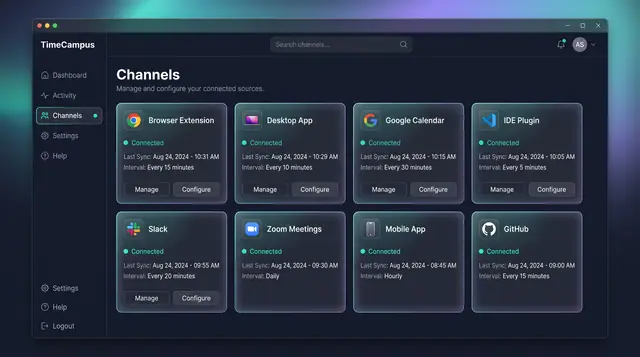
Automatic Capture Across Every Source
Connect your browser, desktop, calendar, editor, chat, meetings, phone and code host once, then let time capture itself.
4 illustrations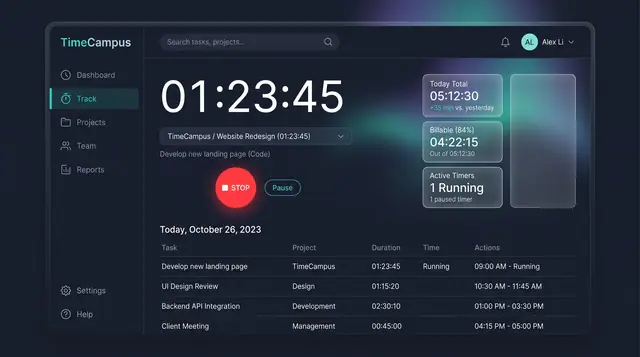
Timer and Time Entries
Start a timer when you want to track deliberately, then review, filter and edit every entry in one billable-aware list.
2 illustrations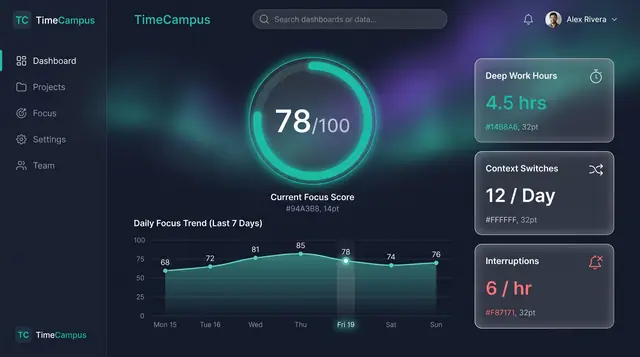
Focus Score and Work Patterns
A single focus score, the deep-work and interruption figures behind it, and the weekly rhythm that explains both.
2 illustrations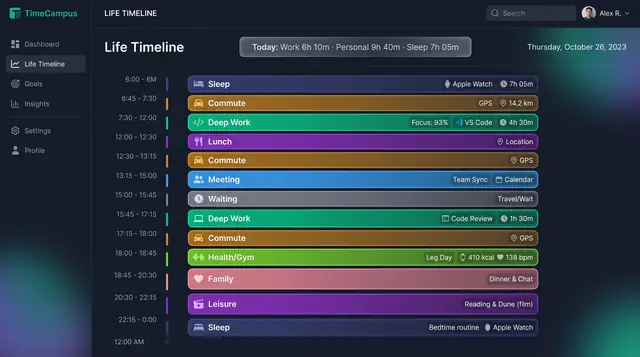
Life Timeline and Life in Weeks
See a whole day across work, rest, family and health, then zoom out to every week of your life lived and still ahead.
2 illustrations
Part of industry solutions
This concept appears in cross-product solutions on burdenoff.com — see how it works alongside other Burdenoff products to solve a problem in that industry.

Industry solution
Consulting, Accounting & Agencies
Builds each consultant's day into categorized blocks from calendar, chat, email and document activity, which are designed to be matched to a client engagement for the consultant to confirm.
See the solution(opens in a new tab)
Industry solution
Personal Finance
Builds each workday from calendar, chat and editor activity into categorized blocks, and suggests the client each block belongs to for the freelancer to accept or reject.
See the solution(opens in a new tab)