
Applet Store and Workspace Templates
Add focused applets and integrations, and start new workspaces from templates shaped for consultants, agencies and teams.
These images are illustrations of the concept, not screenshots of the actual product.
Overview
This concept covers two ways TimeCampus is designed to adapt to how a person or team already works: an applet store for adding focused capabilities and integrations, and a templates gallery for starting a workspace from a ready-made shape rather than a blank page. Both belong to the Extend part of the product, alongside workflow automation.
Time tools tend to arrive either too bare or too rigid. A freelancer tracking billable hours for a handful of clients needs different defaults from a software team working in sprints or an agency balancing projects, revenue and clients, and each of them already relies on calendars, boards and issue trackers that hold part of the story. Rebuilding that context by hand is exactly the kind of admin TimeCampus sets out to remove.
The applet store illustration separates a Store tab from an Installed tab beneath a search field. Each applet appears as a card with an icon, a category label, a name, a one-line purpose, a star rating, an install count, a price tag and a Get it button. The sample catalog mixes integrations that sync calendar events or log time against board cards and tracker issues, a connector for automating tasks across other apps, and self-contained applets such as a habit builder, a Pomodoro focus timer, a project tracker and an analytics dashboard. The templates illustration is a Templates Gallery that invites the user to choose a workspace template. Its cards cover consulting, agency, freelancer, software team and marketing workspaces, and each previews the figures that template is organized around, such as billable hours and team size for consulting, projects, revenue and clients for an agency, or sprint, issues and team size for a software team. Every card offers a View template link and an Apply Template button.
Together the two screens are designed to make extension a matter of choosing rather than configuring. Applets widen what TimeCampus can capture and display, templates set up sensible projects, measures and views for a given kind of work, and both feed the same timeline, analytics and reports that the rest of the product is built on. Installed applets sit under their own tab, so it stays clear what has been added to a workspace.
What this concept shows
- A searchable applet store with separate Store and Installed tabs
- Applet cards showing category, a one-line purpose, star rating, install count and price, with a single Get it action
- Integration applets for syncing calendar events and logging time on board cards and tracker issues
- A connector applet for automating tasks across other apps
- Self-contained applets for habit building, Pomodoro focus timing, project tracking and deeper analytics
- A searchable Templates Gallery of workspace templates for consulting, agency, freelancer, software team and marketing work
- Template cards that preview the measures each template tracks, such as billable hours, revenue, clients, sprints, issues, campaigns and budget
- View template and Apply Template actions on every template card
How it works
- Open the applet store from the navigation rail and search or browse the Store tab.
- Compare applet cards by purpose, category, rating, install count and price.
- Choose Get it to add an applet, then check the Installed tab to see what the workspace now includes.
- Open the Templates Gallery and search for a template that matches the kind of work, such as consulting or a software team.
- Use View template to inspect the measures a template is organized around.
- Choose Apply Template to start the workspace from that shape instead of a blank setup.
Who it's for
- Freelancers and independent consultants
- Agency and consultancy leads
- Software and engineering team leads
- Marketing team managers
- Workspace administrators who set up tools for a team
Illustrations
2 illustrations of this concept. Select one to view it full size.
Applet Store
This illustration shows the applet store inside the TimeCampus app shell. A slim icon rail on the left highlights the applets entry, with settings, help and sign-out icons at its foot. A search field for applets runs across the header next to notifications and the user menu, and two tabs, Store and Installed, separate the catalog from what has already been added. The Store tab holds a grid of eight cards. Each card shows an icon, a category label, the applet name, a short statement of purpose, a star rating, an install count, a Free price tag and a Get it button. The sample listings include integrations for tools such as Google Calendar, Trello and Jira that sync events or log time against cards and issues, a Zapier connector for cross-app automation, and standalone applets for habit building, Pomodoro focus timing, project tracking and data insights. Ratings and install figures are sample data.
Workspace Templates Gallery
This illustration shows the Templates Gallery, reached from a left sidebar listing Dashboard, Templates, Workspaces, Analytics and Settings, with Templates highlighted. A wide search field for templates sits in the header beside notifications and an account menu. Under the heading, a subtitle invites the user to choose a workspace template for time intelligence. The gallery is a grid of cards, each with an icon and a template name: Consulting, Agency, Freelancer, Software Team and Marketing, with more than one variant for software and marketing work. Every card previews the three figures its template is organized around, such as project status, billable hours and team size for consulting; projects, revenue and clients for an agency; active projects and total income for a freelancer; sprint, issues and team size for a software team; and campaigns, return on investment and budget for marketing. A short summary, a View template link and an Apply Template button close each card, and another row begins below the fold. All figures are sample data.
Topics
- time tracking applets
- time tracker integrations
- applet store
- workspace templates
- time tracking template for agencies
- freelancer time tracking template
- calendar time tracking integration
- log time in issue tracker
- Pomodoro timer add-on
- extend a time tracking app
Related concepts
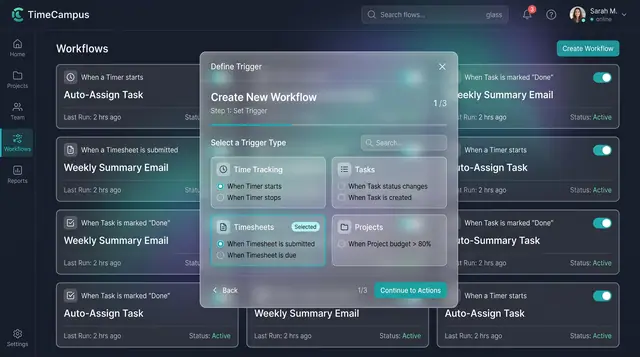
Workflow Automation
Turn time events such as a timer starting or a timesheet being submitted into automated actions, set up in guided steps.
1 illustration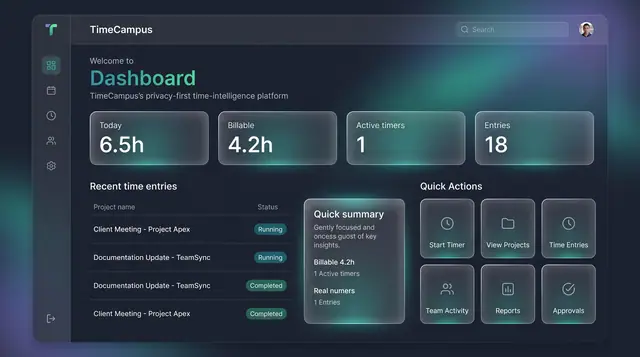
Home Dashboard and Custom Widgets
A home screen that sums up today's time at a glance, plus a widget board you assemble from the cards you care about.
2 illustrations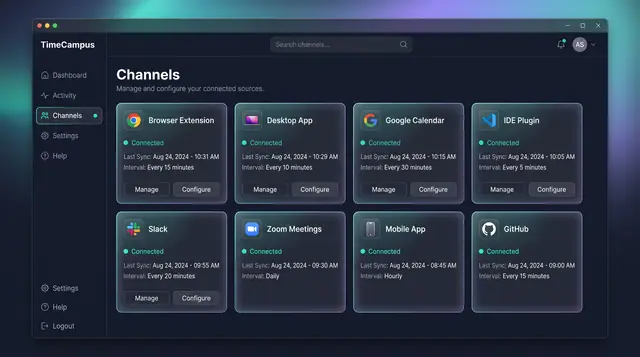
Automatic Capture Across Every Source
Connect your browser, desktop, calendar, editor, chat, meetings, phone and code host once, then let time capture itself.
4 illustrations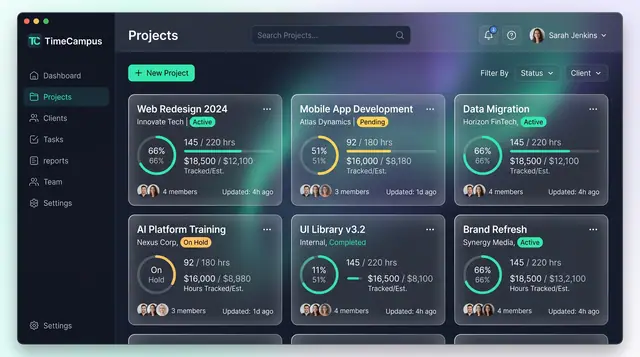
Projects and Tasks
Projects, budgets and task lists tied to the hours actually spent, so progress and burn are read from the same record.
3 illustrations