
Projects and Tasks
Projects, budgets and task lists tied to the hours actually spent, so progress and burn are read from the same record.
These images are illustrations of the concept, not screenshots of the actual product.
Overview
Projects and Tasks is where captured time acquires a destination. A timeline explains a day; a project explains why the day was spent that way. This concept organizes work into client projects with budgets and estimates, breaks those projects into tasks with owners and due dates, and keeps the hours tracked against each one attached to the same record — so status, effort and budget are three views of one set of facts rather than three systems to reconcile.
The problem it addresses is the familiar split between the plan and the truth. Project status usually lives in one tool, hours in another, and the budget in a spreadsheet that is updated late and by hand. By the time a project is visibly over its estimate, the hours that took it there were logged weeks earlier. The design's answer is to place tracked hours next to the estimate and the budget everywhere a project appears, at portfolio level and inside the project itself.
The illustrated experience moves from wide to narrow. The portfolio view lays projects out as cards in a grid, each showing the client, a status pill, a progress ring, hours tracked against the estimate, an amount tracked against the budget, the members assigned and when the project last changed, with filters for status and client and an action to create a new project. Opening a project gives the detail view: a header with the project name, its status, client, owner and start date, edit, archive and delete actions, a budget card and a tracked-versus-budget card with a utilization bar, and a tab strip for overview, tasks, teams and timeline. The tasks tab presents a table with columns for task name, status, priority, assignee, due date and hours, with checkbox selection and pagination over the full set.
The personal task list completes the loop from the other direction, showing one person's assigned work across projects with tabs for their own tasks, all tasks, completed and overdue items. Within the wider product, the same project and task structure is what timers, focus sessions and automatically captured activity attribute to — and what timesheet review, client portals and team capacity planning later read.
What this concept shows
- A project portfolio grid with a card per project showing client, status pill, progress ring and assigned members
- Hours tracked against an estimate and an amount tracked against a budget shown directly on each project card
- A status filter and a client filter above the grid, plus an action to create a new project
- A project detail header with status, client, owner and start date, alongside edit, archive and delete actions
- A budget card paired with a tracked-versus-budget card carrying a utilization bar and percentage
- Tabs within a project for overview, tasks, teams and timeline
- A project task table with columns for task name, status, priority, assignee, due date and hours, with selection checkboxes and pagination
- A personal task list with tabs for assigned, all, completed and overdue work, showing status and priority pills, assignee, due date with a relative hint, comment counts and, where present, subtask progress
How it works
- Open the projects view and filter the portfolio by status or client to find the work in question.
- Scan the cards to compare progress rings, hours against estimate and amount against budget across projects.
- Open a project to see its status, client, owner and start date, and how much of the budget has been used.
- Switch to the project's tasks tab to review the task table by status, priority, assignee, due date and hours logged.
- Page through the full task list, or select tasks with the row checkboxes to work on them together.
- Move to the personal task list to see assigned work across every project, separated into assigned, completed and overdue.
- Update a task as it progresses so the hours tracked against it keep the project's burn figures current.
Who it's for
- Project managers tracking delivery against budget
- Agency and consultancy leads running several client engagements
- Team leads assigning and reviewing task ownership
- Individual contributors working across multiple projects
- Finance and operations staff monitoring budget utilization
Illustrations
3 illustrations of this concept. Select one to view it full size.
Project Portfolio Grid
This illustration shows the project portfolio as a three-column grid of cards within a desktop window. A left navigation column lists dashboard, projects, clients, tasks, reports, team and settings; the header carries the page title, a project search field, a notification badge, help and an account menu. Below the header sit an action to create a new project and two filter dropdowns for status and client. Each card names a project and its client, carries a status pill such as active, pending, on hold or completed, and pairs a circular progress ring with hours tracked against an estimate, shown with a progress bar, and an amount tracked against a budget. A row of member avatars, a member count and a last-updated stamp close the card. Project names, clients and figures are sample data.
Project Detail With Task Table
Here the concept opens a single project. A header shows the project name with edit, archive and delete actions, and a metadata row carrying a status pill, the client, the owner and the start date. Two cards follow: one stating the budget, the other comparing the amount tracked against that budget with a progress bar and a utilization percentage. A tab strip offers overview, tasks, teams and timeline, with tasks selected. The task table beneath has a selection checkbox column and columns for task name, status, priority, assignee, due date and hours, with status pills for completed, in progress and to do, priority labels in graded tones, and an avatar beside each assignee name. A footer reports the visible range out of the full task count with pagination controls. All names and figures are sample data.
Personal Task List
This illustration shows the personal task list, where assigned work from every project is gathered in one place. A tab row separates the viewer's own tasks from all tasks, completed tasks and overdue ones, with an action to create a new task at the right and a task search field in the header. Each task is a full-width row with a drag handle and a completion checkbox, the task title, and labeled fields for status, priority, assignee, due date, comment count and, where present, subtask progress written as completed out of total. Status and priority appear as colored pills covering states such as to do, in progress and done, and priorities from medium through high to urgent. Due dates add a relative hint in parentheses, and a completed row is shown with a checked box and a struck-through title. The entries are sample data.
Topics
- project time tracking
- project budget utilization
- hours tracked versus estimate
- client project portfolio
- task list with priorities
- task assignment and due dates
- project status tracking
- billable project management
- subtask progress
- overdue task view
- project task table
Related concepts
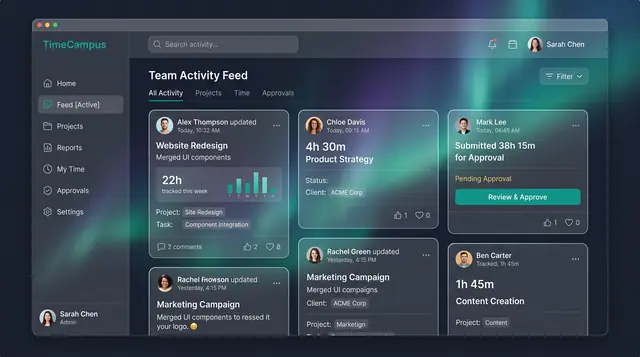
Team Activity and Capacity Planning
Follow what the team is working on, read aggregate time and meeting load, and plan allocations week by week against real capacity.
3 illustrations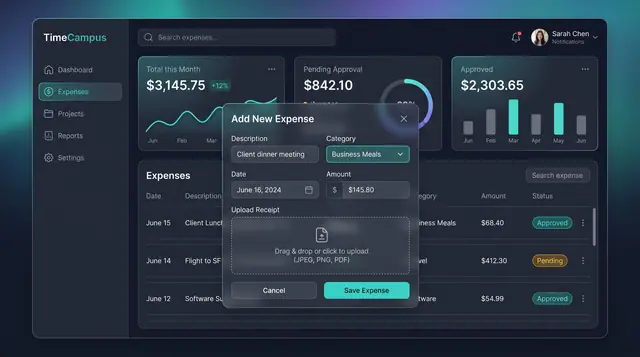
Expenses, Timesheet Approvals and Review
Log expenses with receipts, approve or reject submitted timesheets, and settle questions in a review thread beside the work.
3 illustrations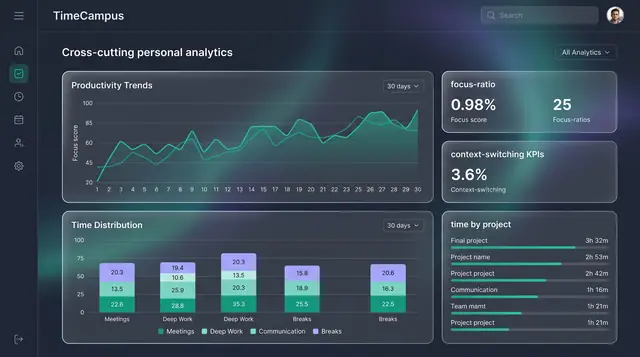
Personal Analytics and Reports
Turn captured time into trends, time distribution and project totals, then export the findings as ready-made reports.
2 illustrations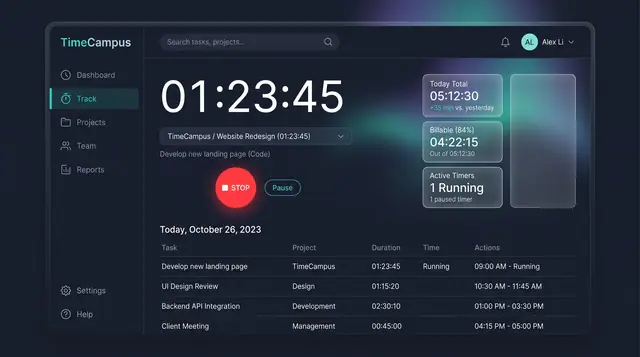
Timer and Time Entries
Start a timer when you want to track deliberately, then review, filter and edit every entry in one billable-aware list.
2 illustrations
Part of an industry solution
This concept appears in a cross-product solution on burdenoff.com — see how it works alongside other Burdenoff products to solve a problem in that industry.