
Workflow Automation
Turn time events such as a timer starting or a timesheet being submitted into automated actions, set up in guided steps.
These images are illustrations of the concept, not screenshots of the actual product.
Overview
Workflow Automation lets a team turn the events TimeCampus already knows about into actions that happen on their own. A timer starting, a task being marked done, a timesheet being submitted or a project crossing a budget threshold can each become the trigger for a workflow, so routine follow-up no longer depends on someone remembering it.
Time data tends to generate small, repetitive chores: sending a weekly summary once timesheets are in, assigning the next task when one closes, keeping an eye on budgets. Done by hand, these are easy to forget and hard to do consistently across a team. The concept addresses this with a gallery of named, switchable workflows and a guided builder that starts from a clear list of triggers.
The illustration shows the Workflows page with a grid of workflow cards. Each card states its trigger, such as when a timer starts, when a timesheet is submitted or when a task is marked done, followed by the workflow's name, such as an auto-assign task, a weekly summary email or an auto-summary task. Cards show when the workflow last ran, an Active status and an on-off toggle. A Create Workflow button opens a Define Trigger dialog for a new workflow, presented as step one of three with a progress bar. The Select a Trigger Type section, with its own search field, groups triggers by area: Time Tracking offers when a timer starts or stops, Tasks offers when a task's status changes or a task is created, Timesheets offers when a timesheet is submitted or is due, and Projects offers when a project's budget passes eighty percent. The Timesheets group is shown selected, and the dialog ends with Back and Continue to Actions.
Workflows connect the Time Tracking, Plan & Deliver and Money & Clients areas of the product, and they sit in the Extend area alongside the applet store and workspace templates as ways to shape TimeCampus to how a team actually works.
What this concept shows
- A grid of workflow cards, each showing its trigger, name, last run and status
- On-off toggles to enable or pause individual workflows
- A Create Workflow action that opens a guided, three-step builder
- A step progress indicator in the Define Trigger dialog
- Searchable trigger types grouped into Time Tracking, Tasks, Timesheets and Projects
- Triggers for timers starting or stopping, task status changes and new tasks, timesheets submitted or due, and project budgets passing a threshold
How it works
- Open Workflows to review existing flows, their triggers, last runs and status.
- Toggle a workflow on or off as needed.
- Select Create Workflow to open the Define Trigger dialog.
- Search or browse the trigger groups and choose a trigger, such as when a timesheet is submitted.
- Continue to Actions to define what the workflow should do, then complete the remaining step.
Who it's for
- Team leads and project managers
- Operations and finance staff handling timesheets
- Agency and consultancy owners watching project budgets
- Workspace administrators setting up team processes
Illustrations
1 illustration of this concept. Select one to view it full size.
Workflow Gallery and Trigger Builder
This illustration shows the Workflows page in a desktop layout, with a left rail for Home, Projects, Team, Workflows, Reports and Settings, and a search field for flows along the top. Behind a dialog, a grid of cards lists existing workflows. Each card names its trigger, such as when a timer starts, when a timesheet is submitted or when a task is marked done, then the workflow, such as an auto-assign task or a weekly summary email, with its last run, an Active status and an on-off toggle. A Create Workflow button sits at the top right. The foreground Define Trigger dialog, marked as step one of three with a progress bar, asks the user to select a trigger type. Options are grouped into Time Tracking, Tasks, Timesheets and Projects, with Timesheets selected and its submitted trigger chosen. Back and Continue to Actions buttons complete the dialog. The design demonstrates guided, trigger-first automation.
Topics
- time tracking automation
- timesheet workflow automation
- timer start trigger
- automated weekly summary email
- auto-assign tasks
- project budget alerts
- no-code workflow builder
- timesheet submitted trigger
- task status automation
Related concepts
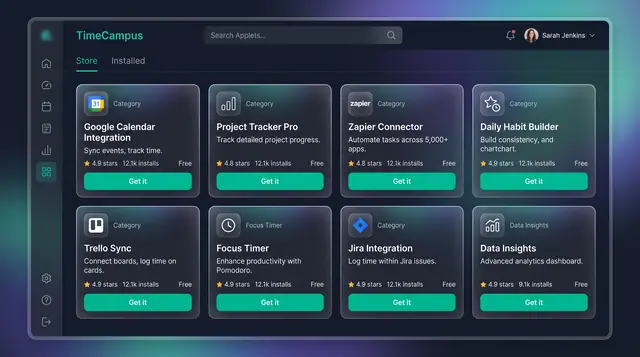
Applet Store and Workspace Templates
Add focused applets and integrations, and start new workspaces from templates shaped for consultants, agencies and teams.
2 illustrations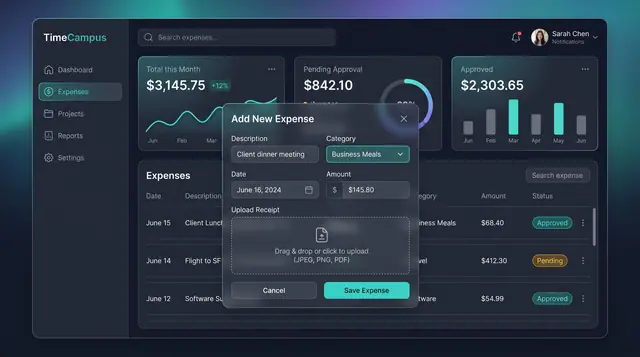
Expenses, Timesheet Approvals and Review
Log expenses with receipts, approve or reject submitted timesheets, and settle questions in a review thread beside the work.
3 illustrations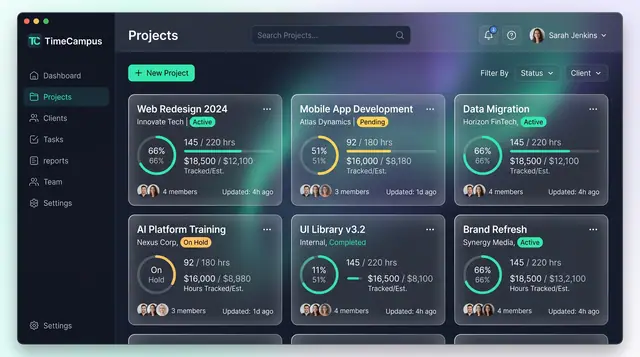
Projects and Tasks
Projects, budgets and task lists tied to the hours actually spent, so progress and burn are read from the same record.
3 illustrations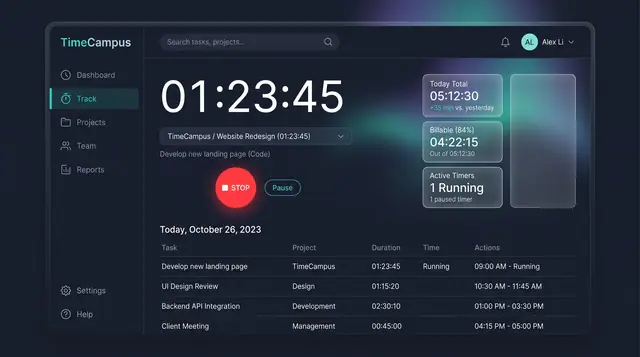
Timer and Time Entries
Start a timer when you want to track deliberately, then review, filter and edit every entry in one billable-aware list.
2 illustrations