
Expenses, Timesheet Approvals and Review
Log expenses with receipts, approve or reject submitted timesheets, and settle questions in a review thread beside the work.
These images are illustrations of the concept, not screenshots of the actual product.
Overview
Expenses, Timesheet Approvals and Review is a TimeCampus concept for the part of time tracking that involves money and sign-off. Tracked hours and project costs only become billable or reimbursable once someone has checked them, and that checking usually happens across spreadsheets, email and chat. The design keeps expenses, timesheet approvals and the conversation about them in one place.
The expense view opens with three summary cards: total spend this month with a trend line and a percentage change, the amount pending approval with a progress ring, and the amount approved with a monthly bar chart. Beneath them, an Expenses table lists each item's date, description, category, amount and status, with approved and pending badges and a menu on every row. Adding an expense opens a dialog for description, category, date and amount, with a drag-and-drop area for uploading a receipt as an image or PDF, and Cancel and Save Expense actions.
Timesheet Approval gives reviewers a queue of pending requests. Each shows the total hours submitted and the pay period, with Approve and Reject buttons side by side. A Review Discussion panel beside the queue holds the conversation between submitter and reviewer, with a message box that accepts images and attachments. The review thread view carries the same idea to a single expense on a project: timestamped comments from named teammates, highlighted mentions, a linked receipt, reactions and reply counts, and a formatted reply editor with a Post Reply button.
Together, the screens describe a loop in which an expense or timesheet is submitted, questioned, answered with evidence and then approved, with the reasoning kept alongside the item instead of being lost in a separate chat. In the wider product, pending timesheets also surface in the team activity feed, and approved time and expenses are designed to flow into reporting and client-facing views. All amounts, names and periods in the illustrations are sample data.
What this concept shows
- Monthly expense summary with total spend, pending approval and approved amounts, each with its own chart
- Expense table with date, description, category, amount and approved or pending status badges
- Add New Expense dialog with category picker, date, amount and drag-and-drop receipt upload for images or PDF
- Timesheet approval queue listing hours submitted and pay period with Approve and Reject actions
- Review discussion panel beside the queue for submitter and reviewer messages with attachments
- Threaded review on an individual expense with mentions, a linked receipt, reactions and reply counts
- Formatted reply editor with bold, italic, link, attachment and emoji controls
How it works
- Open Expenses to see this month's total, what is pending and what has been approved.
- Add an expense with a description, category, date and amount, and attach the receipt.
- Submit timesheets and expenses so they join the reviewer's pending requests.
- As a reviewer, open Timesheet Approval to check the hours and pay period of each request.
- Raise a question in the review discussion or the expense thread, mentioning the submitter.
- Once the submitter answers with the receipt or context, approve or reject the request.
Who it's for
- Team members submitting time and expenses
- Managers and approvers
- Finance and payroll administrators
- Project managers reconciling billable costs
- Agency and consulting operations leads
Illustrations
3 illustrations of this concept. Select one to view it full size.
Expense Tracking with Receipt Upload
This illustration shows the Expenses page of a desktop web app, with navigation for Dashboard, Expenses, Projects, Reports and Settings. Three summary cards run across the top: total spend this month with a line chart and a percentage change badge, the amount pending approval with a progress ring, and the amount approved with a bar chart across recent months. An Expenses table below lists the date, description, category, amount and a status badge for each item, marked approved or pending, with a row menu and its own search box. Over the page sits an Add New Expense dialog with fields for description, category, date and amount, and a dashed drop zone for uploading a receipt as an image or PDF, finished with Cancel and Save Expense buttons. Amounts and descriptions are sample data.
Timesheet Approval Queue
This illustration shows a Timesheet Approval page with a compact icon sidebar and a search field in the header. A Pending Requests panel lists submitted timesheets as rows. Each row shows the total hours submitted and the pay period it covers, followed by an Approve button and a Reject button, so a reviewer can work down the queue without opening each request. To the right, a Review Discussion panel shows a short exchange between the submitter and the reviewer, with avatars, roles and relative timestamps: the submitter sends the timesheet, the reviewer acknowledges it and then confirms approval, and the submitter replies with thanks. A message box at the bottom accepts text, images and attachments. The hours and periods are sample data; the design demonstrates keeping the decision and its explanation on the same screen.
Expense Review Discussion Thread
This illustration shows a Review Discussion panel opened over the app, titled with an expense reference and the project it belongs to, with a close button. The left navigation lists Home, Timesheets, Expenses, Projects and Settings. The thread holds three comments, each with an avatar, name, time and date: one teammate asks about the receipt for a client dinner and mentions a colleague, the colleague replies that the receipt is attached and links to it, and a third person acknowledges the answer and confirms the expense looks correct. Every comment has a reaction count, a reply count and a menu for more actions. At the bottom, a reply box addressed to the project discussion offers bold, italic, link, attachment and emoji controls and a Post Reply button. Names and amounts are sample data.
Topics
- expense tracking with receipts
- timesheet approval workflow
- approve or reject timesheets
- expense approval
- receipt upload
- timesheet review
- expense report software
- pay period timesheets
- approval comments thread
- billable expenses
Related concepts
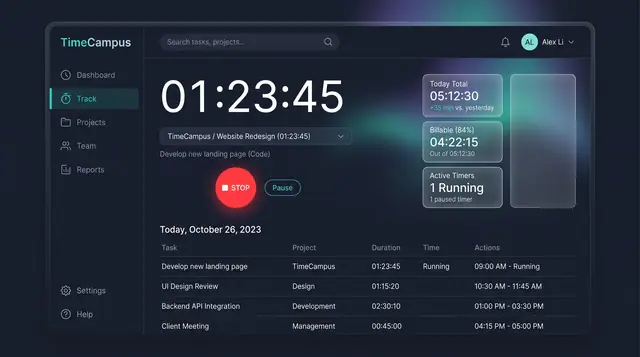
Timer and Time Entries
Start a timer when you want to track deliberately, then review, filter and edit every entry in one billable-aware list.
2 illustrations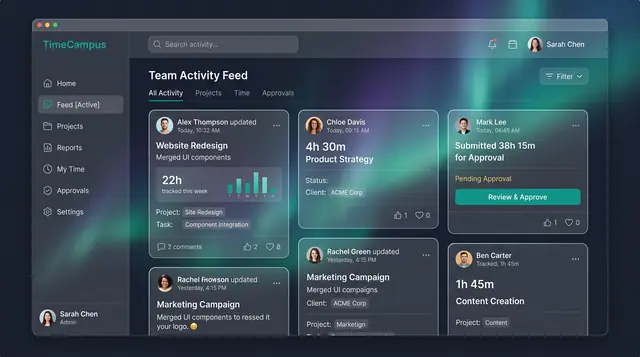
Team Activity and Capacity Planning
Follow what the team is working on, read aggregate time and meeting load, and plan allocations week by week against real capacity.
3 illustrations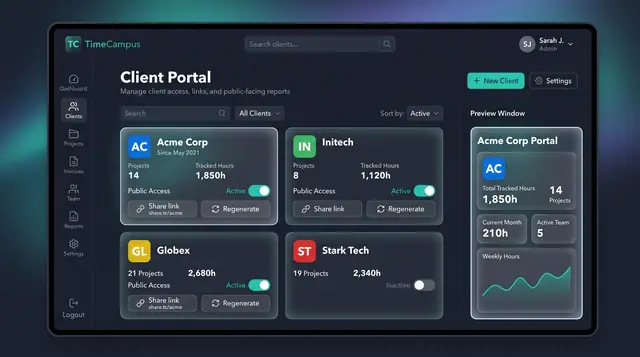
Client Portal and Share Links
Give each client a public view of tracked hours and projects, controlled by a toggle and a share link you can regenerate.
1 illustration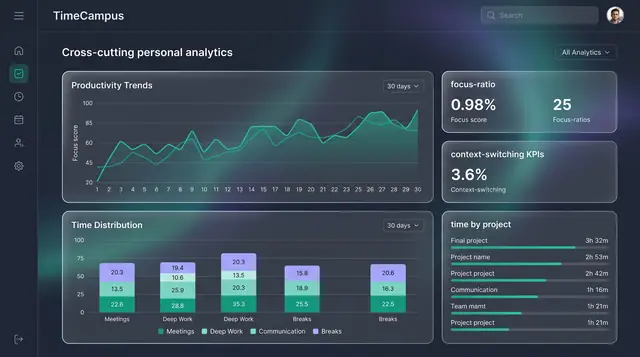
Personal Analytics and Reports
Turn captured time into trends, time distribution and project totals, then export the findings as ready-made reports.
2 illustrations