Theme and Appearance Settings
Choose a theme and accent color, set language, region, time zone and week start, and pick which notifications reach you.
These images are illustrations of the concept, not screenshots of the actual product.
Overview
This concept shows how TimeCampus is designed to let each person shape how the product looks and behaves for them. The illustrated Theme & Appearance page, rendered in the light theme, gathers visual preferences, regional settings and notification choices in one place inside Settings.
A time product is something people open many times a day, often in long sessions and in changing light, so visual comfort matters. So do less obvious details: a week that starts on the wrong day skews weekly totals, and a time zone mismatch shifts where activity lands on the timeline. Notifications that arrive too often, or not at all, turn useful signals into noise.
The page opens under a Settings breadcrumb, with the Settings group in the sidebar expanded to Account, Theme & Appearance, Notifications, Workspace and Integrations. A Select Theme row offers Light, Dark, Forest, Ocean and Sunset tiles, with Light selected, and an Accent Color row offers teal, blue, green, orange, purple and red chips. Interface Settings holds fields for language, region, time zone and the day the week starts. Notification Preferences provides four switches, each with a short explanation: email updates carrying weekly productivity summaries and feature news, project alerts for milestones and deadlines, team mentions for when someone tags you, and system status notices about planned maintenance. Save Changes and Cancel buttons commit or discard the edits, and a settings search field helps people jump straight to an option.
Although it is the simplest screen in the set, the page matters to the rest of TimeCampus. The dark appearance used in most other TimeCampus illustrations is one of the choices in the theme row, the time zone and week start are designed to govern how days and weeks are drawn on the timeline and in reports, and notification choices decide which project and team signals reach a person. It sits beside the privacy and consent controls as part of the settings each user owns.
What this concept shows
- Five theme options, Light, Dark, Forest, Ocean and Sunset, shown as selectable tiles
- Six accent color chips ranging from teal to red
- Language, region, time zone and week start day in one Interface Settings card
- Notification switches for email updates, project alerts, team mentions and system status
- A one-line explanation under each notification option
- A Settings sub-navigation for Account, Theme & Appearance, Notifications, Workspace and Integrations
- A settings search field with Save Changes and Cancel actions
How it works
- Open Settings and choose Theme & Appearance from the settings sub-navigation, or search settings directly.
- Pick a theme tile and an accent color.
- Set language, region, time zone and the day the week starts.
- Turn individual notification types on or off.
- Choose Save Changes to apply the preferences, or Cancel to discard them.
Who it's for
- Anyone who uses TimeCampus throughout the day
- People working across time zones or in distributed teams
- Users who prefer a light or dark interface
- Team members who want control over project and mention alerts
Illustrations
1 illustration of this concept. Select one to view it full size.
Theme & Appearance Settings in the Light Theme
This illustration shows the Theme & Appearance page rendered in the light theme. A sidebar lists Dashboard, Projects, Teams, Reports and Calendar above an expanded Settings group, where Theme & Appearance is highlighted among Account, Notifications, Workspace and Integrations. The header holds a settings search field and a user menu showing an active status. The main area has three cards. Select Theme shows five tiles, Light, Dark, Forest, Ocean and Sunset, each with its own icon and Light selected, followed by an Accent Color row of six labeled chips with teal selected. Interface Settings holds language, region, time zone and start day fields, filled in this sample with US English, the United States, Pacific Time and Monday. Notification Preferences lists email updates, project alerts, team mentions and system status, each with a switch and a one-line explanation; the first three are on and system status is off. Save Changes and Cancel sit beneath the cards.
Topics
- time tracker dark mode
- light theme time tracking app
- theme and accent color settings
- time zone settings for time tracking
- week start day setting
- notification preferences
- language and region settings
- time tracking app appearance settings
Related concepts
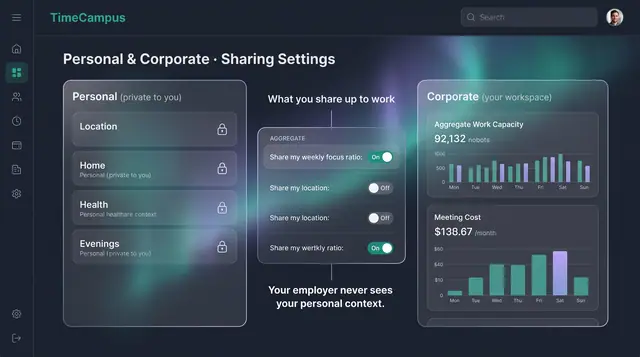
Privacy, Consent and Personal Boundaries
Decide what is captured, how long it is kept, and exactly what crosses from your personal life into your workspace.
3 illustrations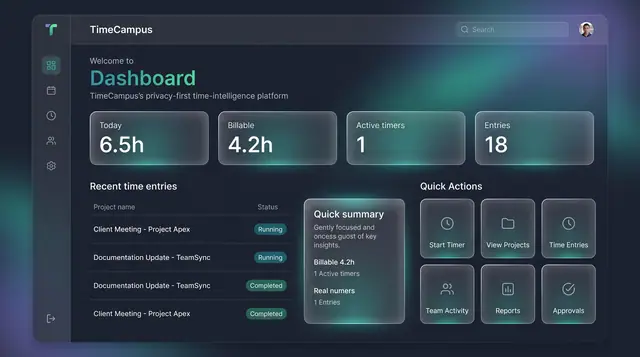
Home Dashboard and Custom Widgets
A home screen that sums up today's time at a glance, plus a widget board you assemble from the cards you care about.
2 illustrations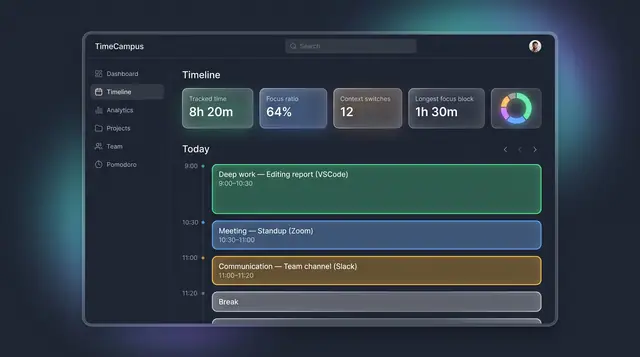
The Self-Assembling Timeline
Your day, assembled from every source into categorized blocks, with suggested projects you can accept or reject.
3 illustrations
Personal Analytics and Reports
Turn captured time into trends, time distribution and project totals, then export the findings as ready-made reports.
2 illustrations